
Accessing Your Vendor Dashboard
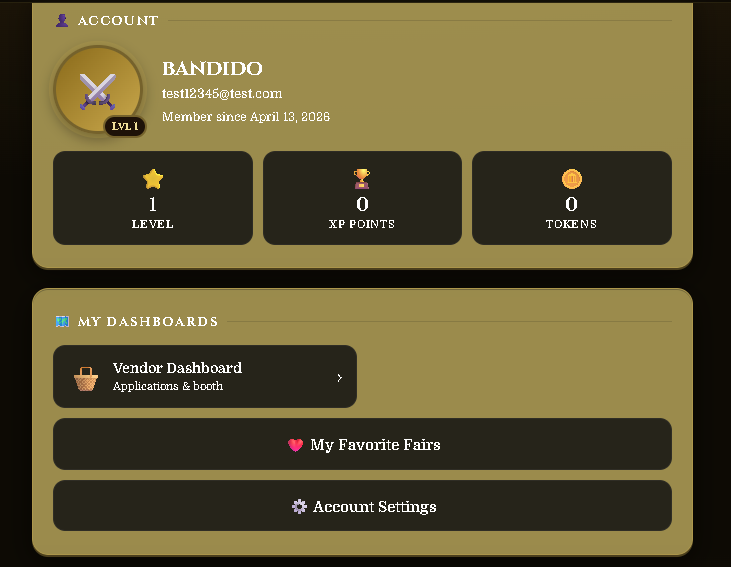
Find the Vendor Dashboard Button
After submitting your application, a Vendor Dashboard button will appear on your profile page. Click it to access your dashboard and check your application status at any time.
Your Dashboard — Basic Tier
All vendors start at Basic tier. Here's an overview of your dashboard and what each button does.
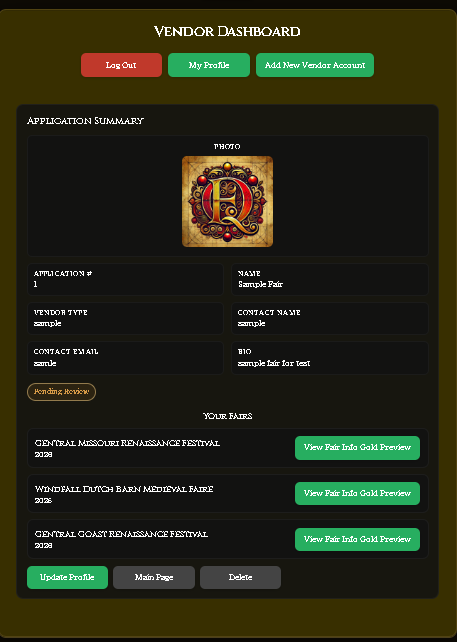
• My Profile — takes you back to your main FairQuest profile page.
• Add New Vendor Account — allows you to add another vendor profile if you have a second business under a different name. Available on Silver and Gold tiers.
• Update Profile — edit your vendor name, bio, photos, contact info, and the fairs you're attending. See the Update Guide for details.
• Main Page — coming soon. This will allow vendors to create a public-facing page with more details about their business.
• Delete — permanently removes your vendor application. This cannot be undone.