How to Update Your Performer Profile
You can update your performer information at any time from your Performer Dashboard. Changes will be submitted for review.
Go to Your Performer Dashboard & Click "Update Profile"
From your Performer Dashboard, find your application summary and click the Update Profile button. This opens the update form with your current information already filled in.
Edit Your Performer Information
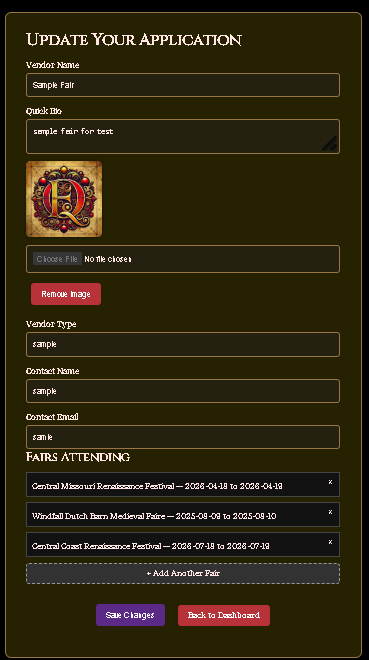
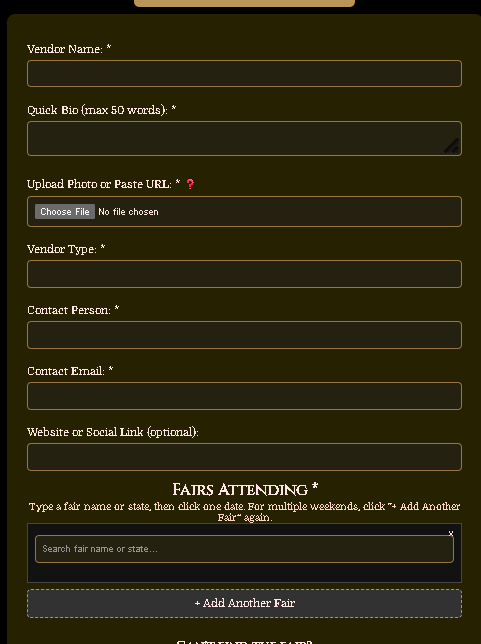
You can update any of the following fields:
• Performer / Act Name — your act name as it appears on FairQuest.
• Bio — a short description of your act and performance style.
• Photo — upload a new photo or remove the existing one.
• Performance Type — the type of act you perform.
• Contact Name — the person fair owners should contact.
• Contact Email — where fair owners and FairQuest can reach you.
• Website — your website or social media link (optional).
Update Your Photo
If you have an existing photo, you'll see a preview with a Remove Image button. Click it to delete the current photo, then upload a new one. If you have no photo yet, the upload field will be ready to use directly.
Adding & Removing Fairs
You can add new fairs or remove existing ones from the same update page.
Add a New Fair
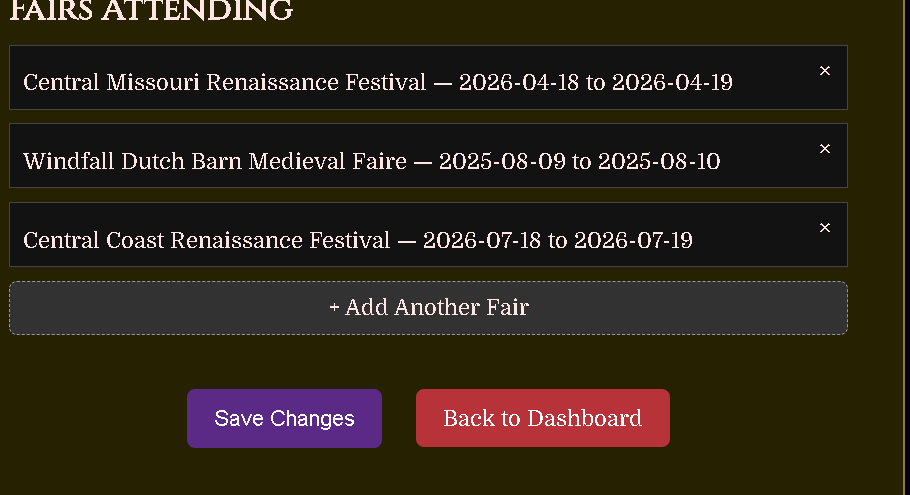
Scroll down to the Fairs Attending section. Click + Add Another Fair, then search for the fair by name. Select the weekend dates you plan to attend by checking the box next to each date.
Remove a Fair
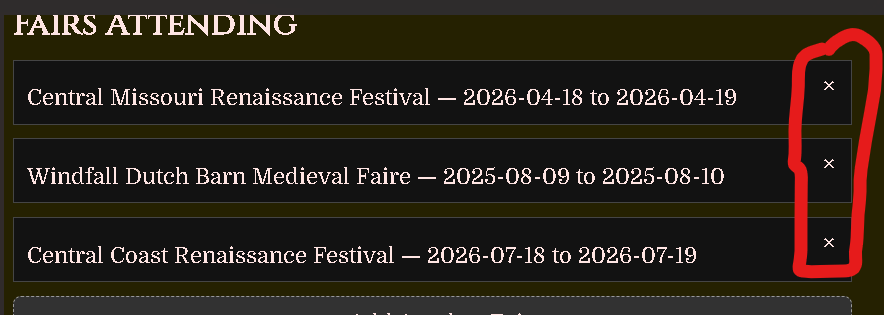
To remove a fair, click the × button on the fair block you want to remove. It will be removed when you save your changes.
Save Your Changes
Once you've made all your edits, click Save Changes. A confirmation window will appear showing a summary of what was changed. Review it and click Continue to submit, or Cancel to go back and make more edits.